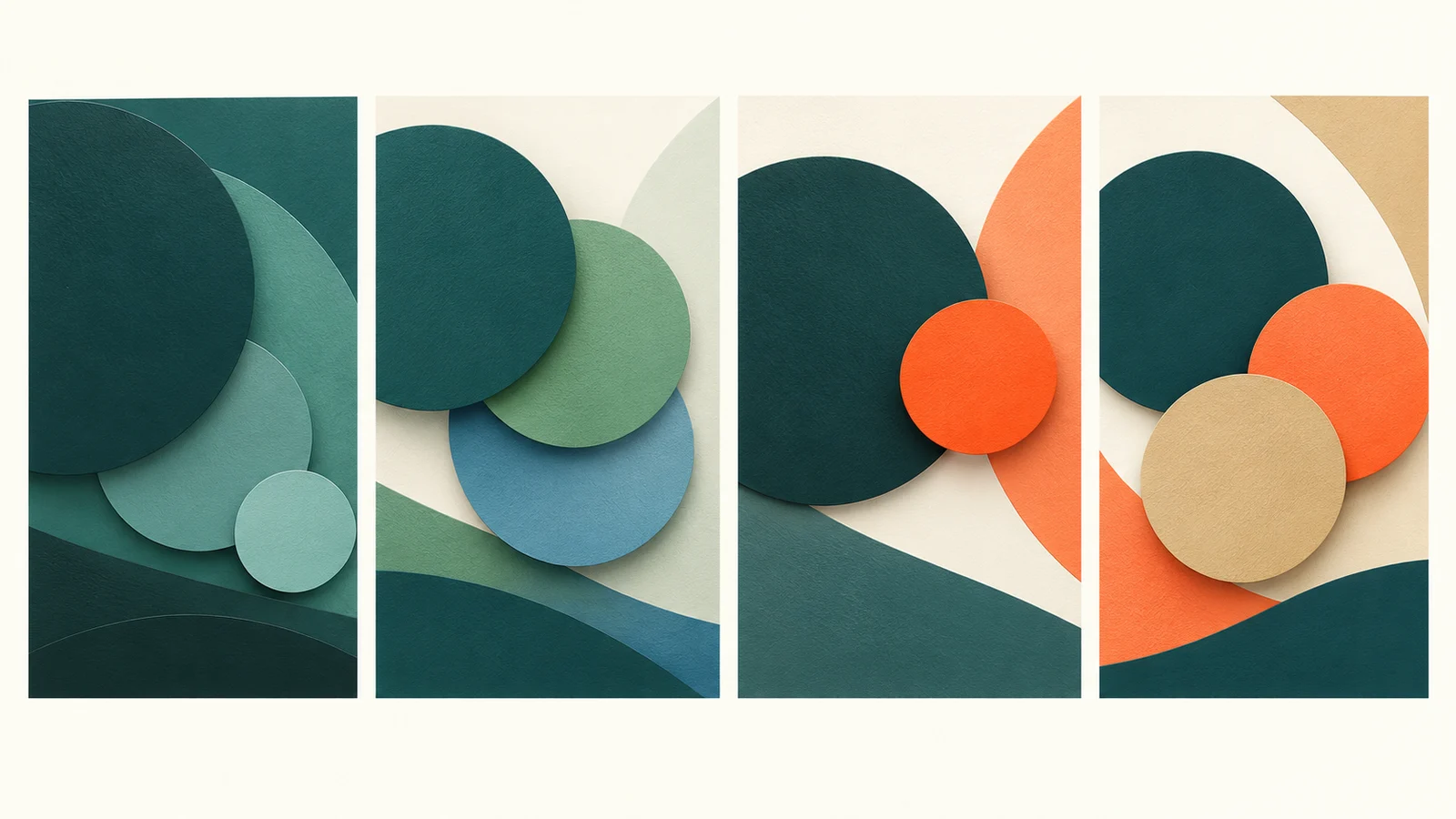
Choosing colours for a website often starts with a favourite shade. Then comes the harder part: what should sit beside it, where should each colour appear, and will the whole page still feel like the same business? A colour harmony gives you a useful starting relationship between colours. It cannot decide the character of your brand or make an unreadable button accessible.
For most service websites, I would begin with one dependable main colour, a small set of supporting tones, and a clear job for each. The four common colour harmonies below offer different ways to build that set. The best choice is the one that supports your content and your visitor’s decisions across real pages, rather than the most striking five-swatch palette on a colour wheel.
What a colour harmony does
A harmony describes a relationship between hues on a colour wheel. Hue is the family we usually call red, blue or green. Colours close together tend to feel related; colours farther apart can create a stronger point of difference. Adobe’s explanation of colour-wheel relationships covers the familiar complementary, analogous and triadic patterns. Its colour-wheel tool also lets you try them from a starting colour.
The wheel tells you which hues relate. It says little about how dark, pale, muted or vivid the finished colours should be. A pale green and a deep green can belong to the same family yet do quite different work on a website. Likewise, two colours can look lively in a row of swatches and fight for attention once they become a heading, a photograph border and a button.
I treat harmony as a way to generate candidates. The design work starts when those candidates are assigned roles: background, body text, heading, link, button, supporting surface and occasional accent. Those roles also have to hold together on mobile and on pages with very different amounts of content.
Monochromatic: one hue with room to breathe
A monochromatic palette varies the lightness and intensity of one main hue. Picture a wellbeing studio that already uses purple: a deep aubergine for headings, a much lighter lavender for quiet sections, and a restrained mid-purple for selected details. The pages can feel coherent without making every element exactly the same colour.
This is often a sound approach for a service business with a recognisable brand colour and a desire for a calm visual identity. It can also make templates easier to maintain. A designer can define a few repeatable tones and use them consistently in articles, service pages and enquiry forms.
The weakness is sameness. If every card, heading and button receives a slightly different purple, the visitor may struggle to tell what matters. I would usually bring in a neutral colour for substantial reading areas and give the main action a clear shape, position and contrast. The action need not be a loud second hue. It does need to be recognisable.
Monochromatic does not guarantee accessible text. A pale lavender sentence on a slightly paler lavender panel can be difficult to read, despite the pleasing relationship between the shades. Test the actual foreground and background pair rather than relying on the palette name.
Analogous: neighbouring hues for a gentle shift
Analogous colours sit near one another on the wheel. A coastal practice might work with blue, blue-green and green. A food business might use warm yellow, orange and red. The colours have enough in common to feel connected while allowing sections or illustrations to change mood slightly.
On a website, that shift can help distinguish types of content. A muted green might support practical guidance, while a blue-green takes the lead on service information. The distinction remains subtle, so typography, spacing and headings still need to explain the page. Colour should reinforce the structure that a visitor can already understand.
Neighbouring hues are particularly useful when photography has a strong colour character. You can draw supporting tones from the images and keep the interface from looking pasted on top. This takes restraint. A site with green photographs, blue-green panels, turquoise icons and bright blue links can feel busy even though every hue is technically related.
Choose one dominant hue. Let the others do smaller jobs. If the palette feels flat, adjust the light and dark values before adding yet another colour. MDN’s guide to CSS colour values explains hue, saturation and lightness, which are useful controls when refining such a family for the web.
Complementary: one clear point of contrast
Complementary hues sit opposite one another on the wheel. Teal and orange make an easy example. Their difference can make a single element stand out, which is why this scheme appeals to businesses that want a confident visual identity.
For a service site, I would rarely give both colours equal space. Imagine a deep teal used for structure and headings, a warm pale background for reading, and orange reserved for small moments that deserve attention. A button, a useful diagram marker or a short callout can carry that accent. If every border, icon and headline is orange, the accent loses its job.
What should the visitor notice first on your busiest page? That is a better test than asking whether two swatches look exciting together. If the answer is an enquiry route, the complementary colour may help draw the eye there. Placement, wording and breathing space will still decide whether the route makes sense.
A complementary pairing can also be softened. Muted terracotta beside deep blue-green often feels more considered than fully saturated orange against fully saturated cyan. Colour-wheel geometry is a starting rule, not an instruction to use the brightest possible version of each hue.
Triadic: variety that needs a firm hierarchy
A triadic harmony uses three hues spaced around the wheel. It offers more range than the other schemes and can suit a lively editorial site, a creative studio or a business whose services genuinely need distinct visual cues.
The challenge is control. Three equally vivid colours all asking to lead can make a page feel like three brands sharing the same space. I would select a dominant hue, a quieter secondary hue and a third for brief emphasis. Neutral backgrounds and a consistent type system give those colours somewhere to rest.
Suppose a children’s activity business uses blue, warm yellow and coral. One colour could anchor navigation and headings. Another could distinguish activity categories. The third might appear in selected illustrations. Keeping those roles steady across the homepage, booking information and articles helps the visitor learn the system.
A restrained triadic palette can still feel energetic. It does not require three bright buttons or a different colour for every section. If the site is mainly a place to compare services and make an enquiry, I would test whether the extra variety improves understanding before adopting it.
Test the colours on a real page
Once I have promising colours, I put them into a small working page: a heading, body paragraph, link, button, card, form field and photograph. This often reveals problems that a swatch collection hides. A lovely accent may be too light for text. A dark brand shade may make a full-screen section feel heavy. A colour that is distinctive in a logo may become tiring when it fills every panel.
At this stage I want a limited, repeatable set of jobs:
- Reading colours: a dependable text colour and surfaces that make longer passages comfortable.
- Brand colours: one main hue and, if useful, a supporting family that carries the site’s character.
- Action colour: a clear treatment for links and buttons, used consistently enough to be learned.
- Feedback colours: error and success messages that also use words or symbols, so colour is not the only signal.
Some colours may do more than one job. The point is to make their use deliberate. This is part of the difference between picking attractive colours and designing a usable system. I discuss a similar judgement in my article on visual hierarchy: what looks most prominent affects what gets noticed first.
Contrast and accessibility set practical limits
A colour harmony can look polished and still produce unreadable text. The Web Content Accessibility Guidelines (WCAG) 2.2 contrast criterion sets a minimum ratio of 4.5:1 for ordinary text and 3:1 for large text at Level AA, with stated exceptions. The non-text contrast criterion covers certain interface components and graphical objects at 3:1. These figures are useful checks, although a ratio on its own does not settle every question about readable typography or a clear interface.
Check the pairs that will appear together on the real page: button text against its fill, links against the article background, labels inside form fields and text over imagery. A palette can contain accessible pairs alongside inaccessible ones. Mobile viewing, sunlight, small type and thin font weights can expose weaknesses that look harmless on a large studio monitor.
BWSD’s Contrast Lab is a practical place to examine colour pairs. The Colour Chooser helps you explore relationships before committing them to a design. For a brief explanation of the numbers behind digital colours, see RGB and HSL: two ways to describe colour.
Do not ask colour alone to carry meaning. A required form field needs a label or message; an active navigation item needs more than a shade change that some visitors may miss. This is part of implementing a palette, not an optional finishing touch.
How I would choose for a real business
I would start with what the business already owns: logo, established colours, photographs, printed materials and the expectations of its customers. Then I would look at the site the business needs. A counselling practice with long, reassuring explanations has different demands from a gaming studio’s portfolio, even if both owners like purple.
Who is the site trying to reassure, and what do they need to find quickly? For a local professional service, steady reading surfaces and clear enquiry paths may matter more than a daring set of accents. A more expressive business may benefit from stronger colour relationships, provided the navigation and content remain easy to follow.
Here is the short decision sequence I use:
- Choose a main hue with the existing brand and audience in mind.
- Try a monochromatic or analogous family first if the content needs a quiet setting; test a complementary or triadic scheme where stronger distinctions have a job.
- Assign each colour a role on an example service page, article and contact form.
- Check important foreground and background pairs, then review the pages on a phone.
- Remove any colour that has no clear purpose or makes the next action harder to spot.
A sector example is only a prompt. Purple does not automatically make a yoga business calm, and orange does not automatically make a creative business bold. The photographs, type, wording, spacing and pace of the pages all affect that impression. The first visual impression of a website comes from those choices working together.
In a WordPress build, I would carry the approved colours into reusable styles rather than adjusting each page by eye. That makes future service pages and articles easier to keep consistent. It also exposes exceptions early: a button placed over a photograph, a form error, or a page with unusually dense copy. Those are the situations where the palette proves itself.
A useful choice is one you can keep using
If you already have a brand colour, begin there. Try its lighter and darker relatives, then see whether a neighbouring or opposing accent solves a real problem. If you are starting from scratch, judge a few small page examples rather than dozens of isolated swatches. A workable palette should make the business recognisable, the words comfortable to read and the next step easy to find.
If you are planning a new site or your existing colours never quite hold together across pages, take a look at my website design services and tell me what feels inconsistent. I can help turn the colours you like into a clear system for a WordPress site that you can continue using.
Sources and further reading
- Adobe: colour-wheel relationships
- MDN: CSS colour values
- W3C: WCAG 2.2 contrast minimum and non-text contrast
Important note
This article provides general information and professional commentary. It is not advice tailored to your particular business, website or circumstances, and it should not be treated as legal, financial, privacy, accessibility, cybersecurity or other specialist advice. Any opinions are my own professional judgement based on the information available when the article was researched.
Products, prices, services, software and official guidance can change. External links are provided for reference; I do not control third-party websites and cannot guarantee their continuing availability, accuracy or content. A link does not imply endorsement of everything published by that source.
Check current official information before making an important decision. Test technical changes safely, keep a verified backup, and obtain appropriately qualified advice where the consequences warrant it. Any sponsorship, free product, affiliate link or other commercial relationship relevant to the article will be clearly disclosed.